Timebars/Costbars Supply and Demand Grids User Guide

Table of Contents
- Overview
- Purpose and Use Cases
- The Five Summary Rows
- View Modes and Configurations
- Primary Roles: Named and Generic Resources
Overview
The Supply vs Demand grid is a strategic resource management tool that provides visibility into resource capacity planning and allocation across projects. It enables resource managers and project managers to identify capacity gaps, prevent over-allocation, and make informed decisions about resource assignments and hiring needs.
Purpose and Use Cases
What Are Supply and Demand Grids?
Supply represents the available capacity of resources in your organization - the total FTE (Full-Time Equivalent) or hours that resources can work based on their employment contracts, calendars, and availability.
Demand represents the actual resource requirements from project allocations - how much capacity is being consumed by tasks and projects that resources are assigned to.
Why Do We Need These Grids?
The gap between supply and demand reveals critical resource management issues:
- Over-allocation: When demand exceeds supply, resources are over-committed and projects are at risk
- Under-utilization: When supply exceeds demand, you have unused capacity that could be deployed
- Future capacity planning: Identifying when you'll need to hire, train, or contract additional resources
- Portfolio decisions: Understanding if you have capacity to take on new projects
Who Uses These Grids?
Resource Managers use these grids to:
- Balance workloads across the organization
- Identify hiring needs 3-6 months in advance
- Resolve resource conflicts and over-allocations
- Optimize resource utilization rates
Project Managers use these grids to:
- Understand if sufficient resources are available for their projects
- Plan project schedules based on resource availability
- Request additional resources when gaps are identified
- Adjust project timelines when resources are over-committed
Portfolio Managers use these grids to:
- Assess organizational capacity for new work
- Make go/no-go decisions on project proposals
- Prioritize projects based on resource constraints
- Plan strategic initiatives around resource availability
Executive Leadership uses these grids to:
- Make hiring and budgeting decisions
- Understand organizational capacity at a high level
- Evaluate departmental utilization and productivity
- Align business strategy with resource capacity
The Five Summary Rows
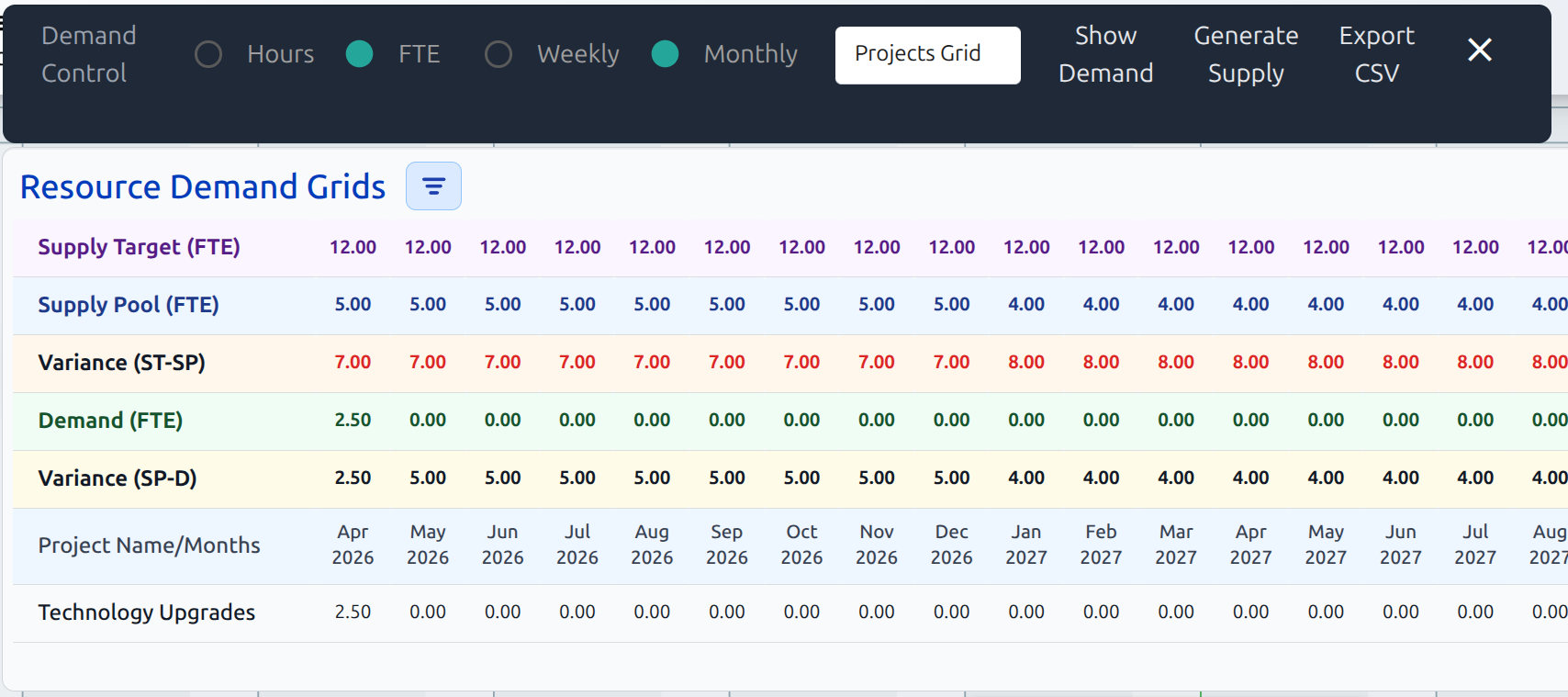
At the top of the Resource Demand Grids, five critical rows provide aggregated metrics:
1. Supply Target (FTE) (First Row)
What it shows: Total available resource capacity across all Generic Resources
Data source:
- Sourced from the
tbResourcesstore (resource pool) - Fields:??
- Each Role has monthly FTE availability defined automatically calculated using tbResQuantity
Example: ??
Timing considerations:
- This allows forward planning for known hiring or departures
2. Supply Pool (FTE) (Second Row)
What it shows: Total available resource capacity across all resources in the pool
Data source:
- Sourced from the
tbResourcesstore (resource pool) - Fields:
tbResMonth1throughtbResMonth24 - Each resource has monthly FTE availability defined (typically 1.0 for full-time)
- Sums ALL resources regardless of the groupBy selection
Example: If you have 6 full-time resources (1.0 FTE each), the supply shows 6.0 FTE per month
Timing considerations:
- Resource start dates (
tbResStart) are factored in - new hires only contribute from their start month - Resource finish dates (
tbResFinish) are factored in - departing resources stop contributing - This allows forward planning for known hiring or departures
3. Variance (ST - SP) (Third Row)
What it shows: ???
4. Demand (FTE) Row - Green Background
What it shows: Total resource requirements from all project allocations
Data source:
- Calculated from the
tbResCalcsUsagestore - Generated by aggregating task allocations across all projects
- Fields:
tbResCalcMonth1throughtbResCalcMonth32 - Respects the groupBy filter - only sums demand for the filtered resources/projects/roles
Calculation process:
- Task allocations are split into monthly buckets (via
splitAllocHoursMonthly) - Each task's total work is distributed across its duration
- Work hours per day are calculated:
totalWork / numberOfWorkDays - Monthly hours are summed for each resource
- Converted to FTE:
monthlyHours / (8 hours/day × 20 work days/month)
5. Variance (S-D) Row - Yellow Background
What it shows: The difference between Supply and Demand (Supply minus Demand)
Color coding:
- Green text (positive variance): You have excess capacity - resources are under-utilized
- Red text (negative variance): You have a capacity deficit - resources are over-allocated
Strategic interpretation:
- Small negative variance (< 0.2 FTE): Minor over-allocation, manageable with overtime
- Large negative variance (> 0.5 FTE): Serious capacity problem, need to hire or delay projects
- Consistent positive variance: Opportunity to take on more work or reduce headcount
6. Month Header Row - Gray Background
What it shows: The calendar months for each column
Format: "MMM YYYY" (e.g., "Sep 2025", "Oct 2025")
Start date: Begins with the apStatusDate from the Admin Panel configuration
- This is typically set to the current month or the project baseline date
- Allows historical analysis by setting status date in the past
- Enables future planning by projecting 24+ months forward
7. Resource/Project/Role Header Row - White Background
What it shows: The first column header, which changes based on groupBy:
- "Resource ID/Owner" when grouping by ResourceName
- "Project Name" when grouping by Project
- "Role" when grouping by Role
View Modes and Configurations
FTE vs Hours Toggle
FTE (Full-Time Equivalent):
- Standard view for strategic planning
- 1.0 FTE = one full-time resource for one month
- Easier to understand capacity at a glance
- Recommended for executive reporting and high-level planning
Hours:
- Detailed view for tactical planning
- Shows actual work hours (e.g., 160 hours/month for 1.0 FTE)
- Useful for detailed project scheduling
- Helps with billing and time-tracking analysis
Conversion formula:
FTE = Hours / (Calendar hours per day × Working days per period)

For monthly:
FTE = Hours / (8 hours/day × 20 days/month) = Hours / 160

For weekly:
FTE = Hours / (8 hours/day × 5 days/week) = Hours / 40
Note: Supply totals are always calculated in FTE from the resource pool, then converted to hours if needed. The conversion uses: Hours = FTE × 8 × 21 (assuming 21 working days per month).
Weekly vs Monthly Toggle
Monthly View:
- Displays resource capacity and demand by calendar month
- Better for long-term strategic planning (6-24 months out)
- Smooths out weekly variations
- Recommended for portfolio planning and hiring decisions
- Supply and demand totals are shown
Weekly View:
- Displays resource capacity and demand by work week (Monday-Friday)
- Better for short-term tactical planning (1-3 months out)
- Shows week-to-week fluctuations
- Useful for identifying specific bottleneck weeks
- Currently does NOT show supply/demand totals (demand data only)
Why monthly is preferred for supply/demand analysis:
- Resource supply data is typically managed monthly (hiring, contracts)
- Weekly granularity creates noise in capacity planning
- Monthly aligns with financial planning and reporting cycles
Group By Options
The groupBy selection controls how demand rows are organized, but does NOT affect supply totals.
Group By: Project
Use case: Understanding capacity allocated to each project
What you see:
- One row per project showing demand
- Supply row shows total capacity across ALL resources
- Variance shows if organization has capacity for all projects combined
Strategic questions answered:
- Which projects are consuming the most resources?
- Do we have enough capacity for all active projects?
- Can we take on a new project without hiring?
Example scenario: You have 3 projects (CRM Migration, ERP Upgrade, Website Redesign). The grid shows how much FTE each project demands per month, and whether your total resource pool can support all three simultaneously.
Group By: Resource Name
Use case: Monitoring individual resource utilization
What you see:
- One row per named resource (e.g., "Joe Invent", "Ally HR")
- Each row shows that resource's project allocations
- Supply row still shows organizational total (all resources)
Strategic questions answered:
- Which individuals are over-allocated?
- Who has available capacity for new work?
- Are workloads balanced across the team?
Example scenario: Joe Invent shows 1.2 FTE demand in March (over-allocated by 20%), while Julia Finance shows 0.6 FTE (has 40% available capacity). You can rebalance by moving some of Joe's work to Julia.
Group By: Role
Use case: Understanding capacity by job function or skillset
What you see:
- One row per role (e.g., "Developer", "Engineer", "Finance SME")
- Shows aggregated demand for all resources in that role
- Critical for skills-based capacity planning
Strategic questions answered:
- Do we have enough developers vs. testers?
- Which role is the bottleneck in our organization?
- Should we hire for a specific skillset?
Example scenario: Your "Developer" role shows 3.5 FTE demand but you only have 3.0 FTE supply of developers. You need to hire an additional 0.5 FTE developer (potentially a contractor) or delay some development work.
Primary Roles: Named and Generic Resources
The system supports two types of resources that work together for flexible capacity planning:
Named Resources (Humans)
What they are: Individual people with specific identities
Characteristics:
tbResLabourType: "Human"- Unique identifier:
tbResID(e.g., "700", "701", "702") - Named individuals: "Joe Invent", "Ally HR", "Julia Finance"
- Assigned a Primary Role: "R&D", "HR SME", "Finance SME"
- Quantity is typically 1
Why we need them:
- Track specific people's workloads and allocations
- Manage vacation, training, and individual availability
- Support performance management and utilization reporting
- Enable skills-based assignment to tasks
Primary Role assignment: Each named resource is assigned one Primary Role (e.g., Joe Invent has Primary Role = "R&D"). This:
- Categorizes the resource by function for reporting
- Enables role-based filtering and grouping
- Supports career development and succession planning
- Allows comparison of individuals within the same role
Generic Resources
What they are: Placeholder resources representing a pool of similar workers
Characteristics:
tbResLabourType: "Generic"- Role-based identifier:
tbResID(e.g., "800", "818", "830") - Generic names matching the role: "R&D", "HR SME", "Finance SME"
- Assigned a Primary Role that matches the resource name
- Quantity can be > 1 (e.g., "2" means 2 FTE of this role)
Why we need them:
- Early project planning before specific people are assigned
- Representing contractor pools or offshore teams
- Capacity planning when you don't know who specifically will do the work
- Future hiring - you know you need "3 developers" but haven't hired them yet
How quantity works:
If Generic Resource "Developer" has tbResQuantity: "2" and tbResMonth1: "2.00", this means:
- You have 2.0 FTE of developer capacity available
- This could represent 2 full-time developers
- Or 4 half-time developers
- Or any combination totaling 2.0 FTE
Why Have Both Named and Generic?
This dual approach supports the full project lifecycle:
Early Planning Phase:
- Use generic resources ("we need 2 developers and 1 tester")
- Estimate capacity needs without knowing specific people
- Justify hiring or budget requests
Assignment Phase:
- Replace generic allocations with named resources
- Assign Joe, Chris, and John to specific tasks
- Track actual people doing the work
Capacity Planning:
- Generic resources fill the gap between demand and available named resources
- If named resources show 4.5 FTE demand but only 4.0 FTE supply, the 0.5 FTE gap might be filled by generic "Developer" resource (representing a contractor)
Reporting Flexibility:
- Group by Resource Name: See named resources only
- Group by Role: See combined named + generic resources by function
- Supply totals: Includes both named and generic for total capacity
Primary Role in Generic Resources
Generic resources have their Primary Role set to match their name:
- Resource Name: "Developer" → Primary Role: "Developer"
- Resource Name: "R&D" → Primary Role: "R&D"
This ensures that when grouping by Role, both named resources with that role AND the generic resource pool for that role are aggregated together, giving a complete picture of capacity for that function.